


Getting Started — Quick Start (5 minutes)
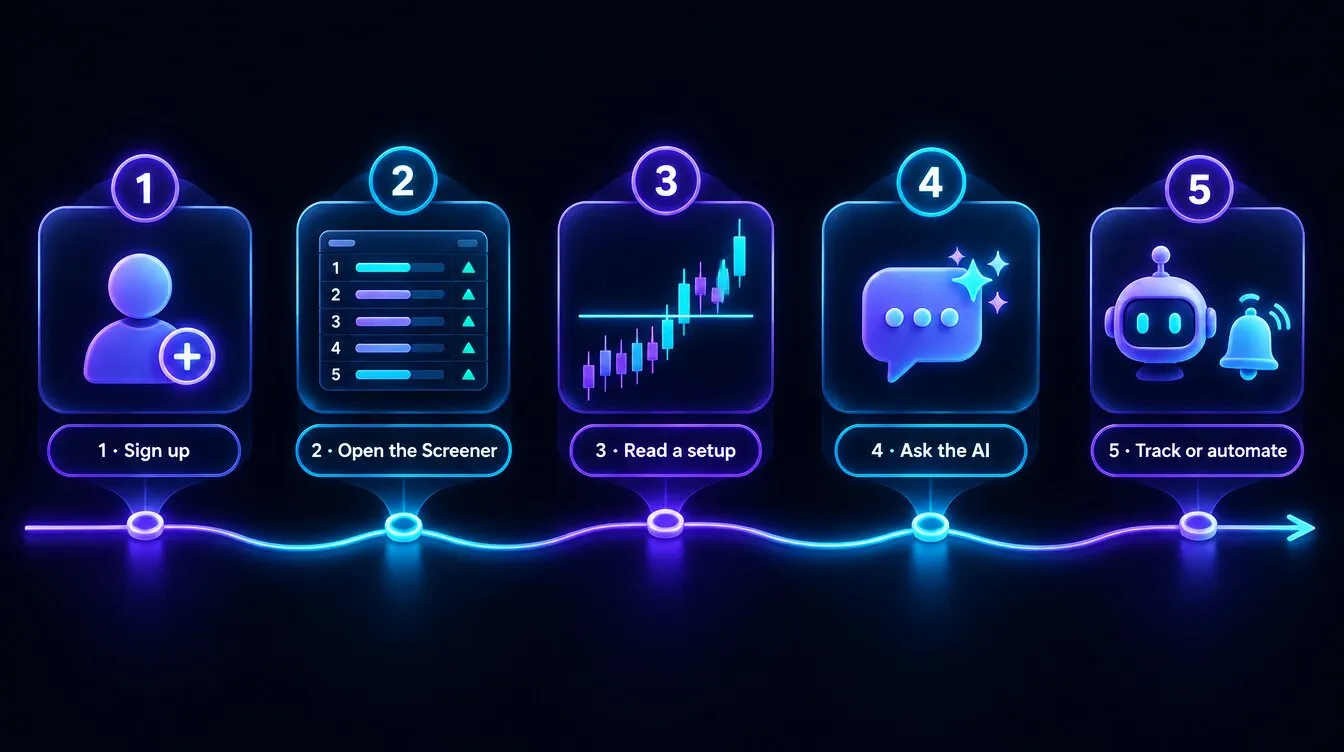
New to Formion? This is the fastest path from sign-up to your first real signal. No card needed — the free Neural tier is genuinely useful.
The 5-minute path in 16 seconds: sign up → Screener → read a setup → ask the AI → track or automate (demo values).
Formion AI — Intro. A walk through the whole Formion ecosystem.
1 · Sign up
Section titled “1 · Sign up”Go to app.formion.ai — it sends you to formion.ai to sign in or create an account (email, Google or  Telegram), then back to the Quantum Terminal. Nothing to connect yet — data is live out of the box.
2 · Open the Screener
Section titled “2 · Open the Screener”The home view is the Screener — every market ranked by Formion’s native score. Sort by Score, filter to your market (crypto / stocks), and pick a timeframe. The top rows are where momentum, volume and positioning line up right now.
3 · Read a setup
Section titled “3 · Read a setup”Click any pair to open Chart Pro with the full order-flow workspace, or read the row’s strongest signals to see why it scored. Check the Bias Map (Screener → Bias Map) to see if the whole market agrees with that direction.
4 · Ask the AI
Section titled “4 · Ask the AI”Open the AI Advisor, pick a style / risk / asset class, and get a ranked list of tradeable ideas with rationales — or paste a chart screenshot into Trade Vision for a structured entry / stop / take-profit plan. Want the crowd’s read? Check Formion Pulse for what influencers and the market are saying.
5 · Track or automate
Section titled “5 · Track or automate”- Watch it: add the symbol to your Watchlist and set an alert (browser, sound or Telegram).
- Let FORA watch it: open Neurons in the main menu and set a watcher that tells you in the app or on Telegram — the same page shows when each one fired and why.
- Log it: record the trade in the Trading Journal for full performance analytics.
- Automate it: build a rule in the Strategy Lab (3 backtests a day on Neural, more on Pro) and forward-test it as a paper bot before attaching anything to your connected account.
Next: Connect a broker or exchange · Pricing & tiers · Use cases
Continue from Command Center
Section titled “Continue from Command Center”On the formion.ai dashboard, use Command Center to ask FORA, attach a chart or document, or start with a suggested research command. For forex/CFDs, connect a  cTrader demo account before moving to live trading. Review tracked outcomes in Trades History and upcoming catalysts in News.