


How to Automate Your Trades with TradingView Alerts on Formion 📈🔔
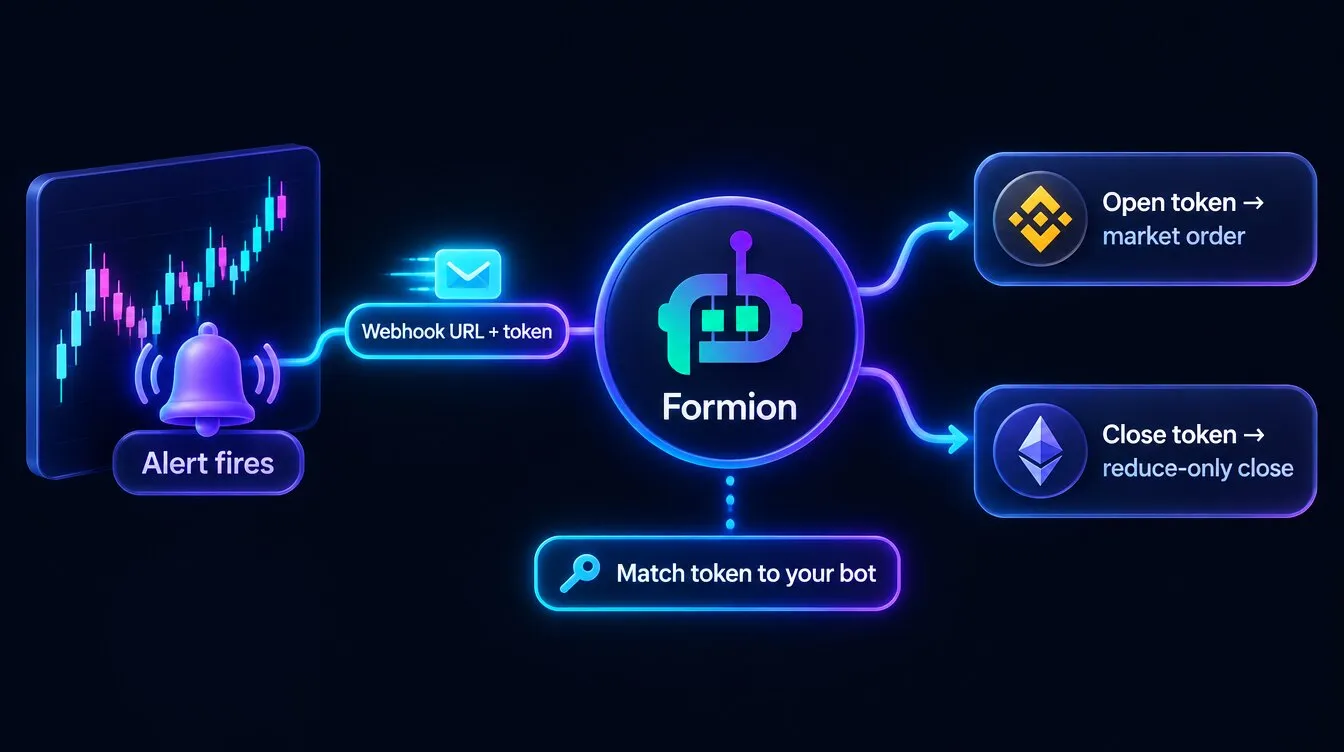
Connect a  TradingView alert to your own exchange and let Formion execute the trade for you — on CEX and DEX. You create a TradingView Bot, copy its webhook URL and alert messages, and paste them into a TradingView alert. When the alert fires, Formion places the order on your connected account.
The whole setup in 17 seconds: connect → create bot → copy webhook → TradingView alert → activate (demo values).
1. Connect your exchange
Section titled “1. Connect your exchange ”First connect the account you want to trade on (one-time):
- Go to formion.ai → Profile → Connections.
- Under Exchanges (CEX) or the DEX cards, link your account with API keys / signing key. See How to Start — API Connection.
- Supported today: CEX —
 Binance,
 Bybit,
 KuCoin,
 Gate,
 BingX,
 MEXC,
 Blofin,
 Bitget. DEX —
 Hyperliquid,
 Asterdex, Bluefin, Extended. (Venues are enabled for automation progressively.)
- Link your
 Telegram in Profile → Connections too — TradingView bots sync through @formiontradingbot, so the New bot button stays disabled until Telegram is linked.
2. Create a TradingView Bot
Section titled “2. Create a TradingView Bot ”- In Profile → Connections, open the TradingView Automation card and click New bot.
- Fill in:
- Account type — Live or Demo. Demo runs on Bybit only (real prices, demo funds).
- Exchange — any account you’ve connected (CEX or DEX).
- Market — Futures or Spot.
- Symbol — e.g.
BTCUSDT. - Direction — Long or Short (the side this bot opens).
- Sizing — Fixed
 USDT amount, or % of balance.
- Amount / Leverage (futures) / optional Label.
- Account type — Live or Demo. Demo runs on
- Click Create bot. The bot is created paused with two private tokens.
3. Copy the webhook + alert messages
Section titled “3. Copy the webhook + alert messages ”Each bot shows three things — copy them with the buttons:
- Webhook URL — copy the URL displayed on your bot card
- Open — alert message — e.g.
{"token":"<your-open-token>"} - Close — alert message — e.g.
{"token":"<your-close-token>"}
The token is the only secret; keep it private. Open opens the position, Close closes it (reduce-only).
4. Set up the alert on TradingView
Section titled “4. Set up the alert on TradingView ”- On TradingView, open your chart/strategy and click Create Alert.
- Set your condition (indicator cross, strategy order, price, etc.).
- Open the Notifications tab → enable Webhook URL → paste the Webhook URL from step 3.
- In the Message field, paste the Open alert message (to open) — or the Close message (for a separate close alert).
- Save. Repeat with the Close message for a second alert if you want automated exits.
5. Activate
Section titled “5. Activate ”- Back in TradingView Automation, toggle the bot to Active.
- When automation is enabled for your account, the next matching TradingView alert will place the order on your connected exchange. Every fire is logged with status (filled / skipped / error).
Safety
Section titled “Safety ”- Tokens are random and per-bot; rotate by deleting and recreating a bot.
- A bot only ever trades the one symbol and direction you configured. Close orders are reduce-only (they can’t open or flip a position).
- Duplicate alerts with the same id are ignored (no double-fills). To use this, include an
id,alert_id,nonceortimenowfield in the alert message JSON. - You can pause or delete a bot at any time. Formion never withdraws funds — it only places trades on your connected account.
Emoji Recap
Section titled “Emoji Recap ”- Connect your exchange (CEX or DEX)
- Create a TradingView Bot
- Copy the webhook URL + Open/Close messages
- Paste them into a TradingView alert
- Activate
Happy automating!