


Formion Wallet for Chrome (2.0)
Formion Wallet for Chrome is the full Formion Wallet as a Chrome extension. Version 2.0 brings the web wallet’s tools into the browser: ten networks with one recovery phrase, swaps and bridges including native  Bitcoin,
 Hyperliquid, staking,
 FOM Lock, orders, gas in
 USDC, an address book and send protection. Every site connection, signature and transaction opens a Formion review window first.
Live recording of the extension with a test wallet: home, other networks, Formion tools and Swap.
Install
Section titled “Install”Install, pin, choose popup or side panel, then create or import.
- Open Formion Wallet on the Chrome Web Store and click Add to Chrome, then Add extension. Install only from this official listing; updates then install automatically.
- Click the puzzle icon in the Chrome toolbar and pin Formion Wallet.
- Click the Formion icon. Choose Create a new wallet or Import
 MetaMask,
 Phantom, Trust….
- Set a wallet password. It encrypts the vault in this browser and unlocks the extension.
| Option | What happens |
|---|---|
| Create a new wallet | A fresh recovery phrase made on your device. Write it on paper and keep it offline. |
| Import a recovery phrase | Paste the phrase from MetaMask, Phantom,  Trust Wallet or another wallet. The extension uses the same derivation paths, so you see the same addresses. |
| Password | Encrypts the vault on this device. Formion cannot reset it; the recovery phrase is the only way back. |
Popup or side panel
Section titled “Popup or side panel”The extension opens as a popup from the toolbar. The side-panel button at the top keeps the wallet open in Chrome’s side panel next to every page (Chrome 116 or newer). Switch back to the popup at any time.
Networks and accounts
Section titled “Networks and accounts”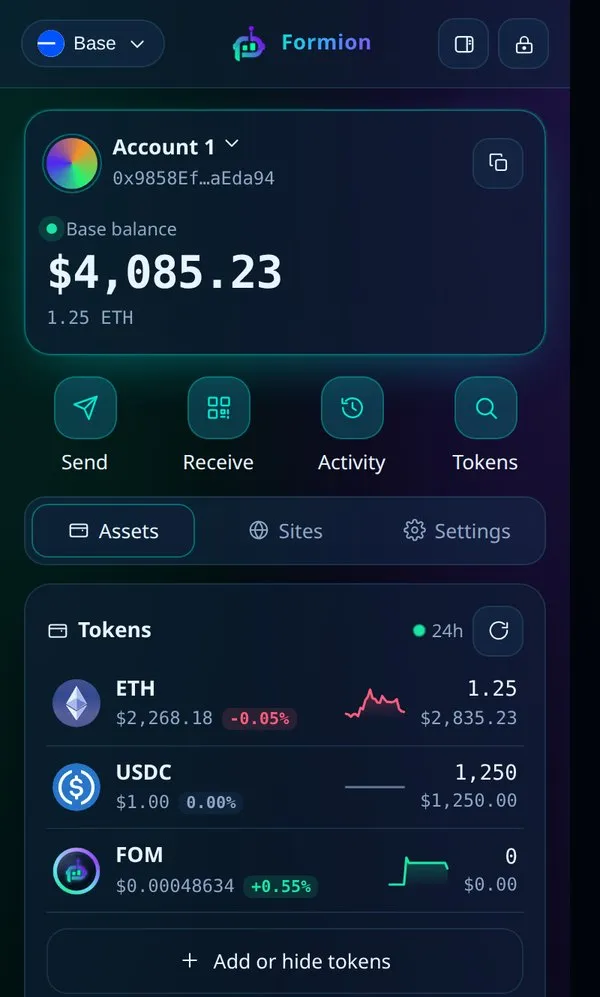
Home: your balance on the selected network, the main actions and your tokens with 24-hour change.
- Networks:
 Ethereum,
 Base,
 Arbitrum,
 BNB Chain, HyperEVM, Bitcoin,
 Solana, Tron, Sui and Hyperliquid — all from one recovery phrase. One EVM address works on every EVM network; Bitcoin, Solana, Tron and Sui each have their own address.
- Other networks on the home screen show balances, prices and 24-hour change for Bitcoin, Solana, Tron and Sui.
- Accounts: add Account 1, 2, 3… from the same phrase, plus watch-only addresses.
- Tokens: add any token by contract address, or tick it from the popular list. NFTs can be viewed and sent.
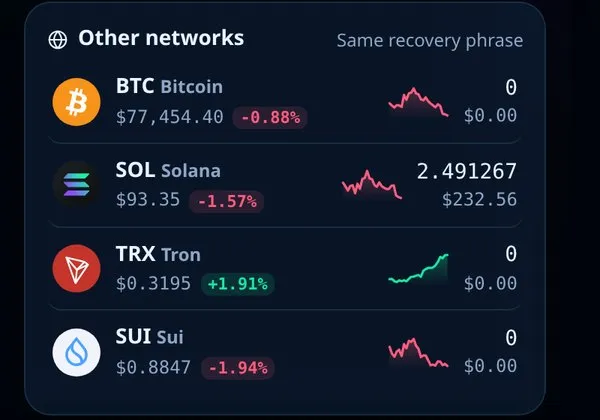
Other networks: Bitcoin, Solana, Tron and Sui on the same recovery phrase.
Send and receive
Section titled “Send and receive”- Send works for every network’s coin and tokens. You see the network fee before you confirm, and the review window shows what leaves and what arrives.
- Address book on every network, including Bitcoin and BNB Chain. Each contact has a type (private person, exchange (CEX) and more) and a note. Import and export as CSV or JSON. Pick a contact in every recipient field.
.fomnames resolve in every recipient field.- Send to many: paste a list or upload a CSV, on EVM networks and Solana.
- Request: create a payment request with an amount, note and QR code.
- Clipboard guard: if the pasted address differs from the one you just copied, the wallet stops and warns you. It also warns about look-alike addresses.
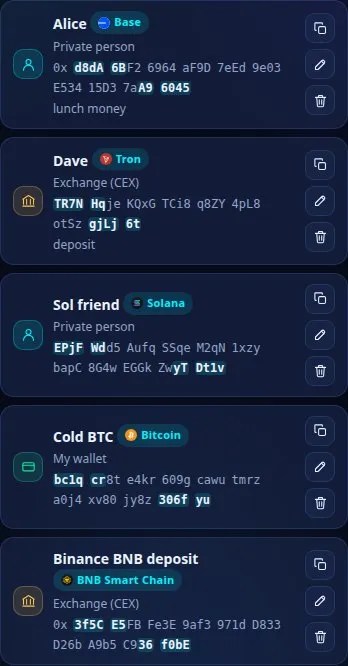
Address book: contacts on every network, with type and note. The addresses shown are examples.
Live recording: send to a saved contact — nothing is signed before you confirm.
Swap and bridge
Section titled “Swap and bridge”Open Formion tools on the home screen.
| Tool | What it does |
|---|---|
| Swap | Best-route swaps on Ethereum, Base, Arbitrum, BNB Chain, Solana, Sui, Tron and HyperEVM. |
| Bridge | USDC between networks with Circle CCTP, and verified routes between EVM networks. |
| Bridge to / from Bitcoin (Beta) |
Turn USDC,  ETH, FOM, cbBTC, SOL and more into native BTC on your own bc1q… address — and BTC back into USDC on Base, Solana, Ethereum, Arbitrum, BNB Chain or HyperEVM. |
Before you sign, the wallet checks the route: your own address as the receiver, only allowed contracts, and the guaranteed minimum. Token approvals are always for the exact amount, never unlimited.
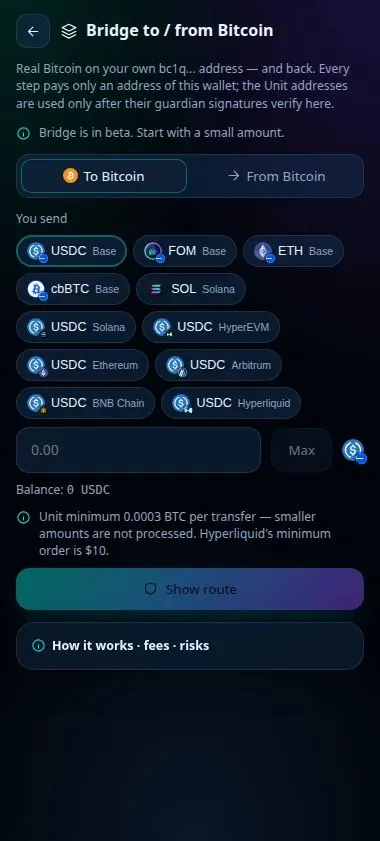
Bridge to / from Bitcoin: pick what you send, including USDC on BNB Chain.
Bitcoin bridge step by step (DEMO values).
How the Bitcoin bridge works
- Open Bridge to / from Bitcoin and choose To Bitcoin or From Bitcoin.
- Pick the token and network you send.
- Enter the amount. The minimum is 0.0003 BTC per transfer; smaller amounts are not processed.
- Click Show route. You see the steps, fees and expected time before you sign.
- Review and sign in the Formion window. Every step pays only an address of this wallet; the bridge’s deposit addresses are used only after 2 of 3 guardian signatures are verified inside the extension. Formion takes no fee.
Hyperliquid
Section titled “Hyperliquid”Open Hyperliquid in Formion tools to trade perps and spot straight from the extension, signed with your own key — no separate account and no custody.
- Perps with take profit / stop loss, market and limit orders, cross or isolated margin.
- Spot trading, collateral (borrow USDC against BTC or
 HYPE) and funding history.
- Deposit and withdraw to the token and network you choose; moves to and from HyperEVM.
- Live chart, order book and trades.
- Auto-move in the extension only suggests a move and opens an approval window — nothing moves without your click.
Live recording: Staking, then Hyperliquid markets.
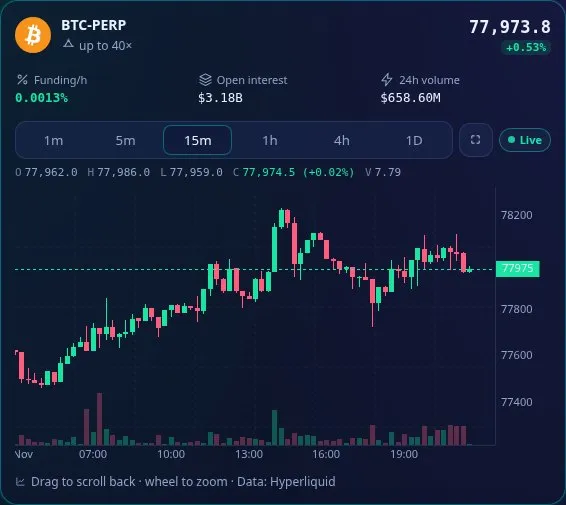
Hyperliquid market: funding, open interest, volume and the live chart.
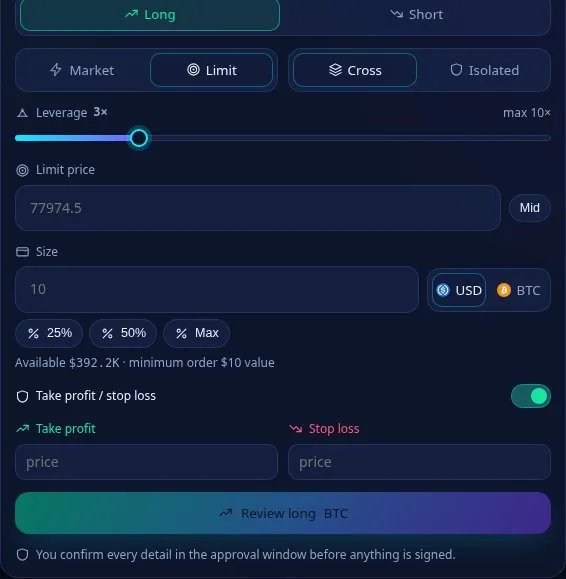
Order ticket: you confirm every detail in the approval window before anything is signed.
Fees, routes, collateral and liquidation are explained in Hyperliquid in Formion Wallet. Leverage can lose more than you expect, and positions can be liquidated.
| Product | What it is |
|---|---|
| Staking | Native SOL (delegate to a validator), JitoSOL liquid staking, native  SUI and ETH with Lido (stETH). Your coins stay on your own address; Formion never holds them and takes no fee. |
| FOM/WETH liquidity |
Add FOM and ETH to the official  Uniswap v3 pool on Base (1% fee tier), collect fees or remove liquidity. Impermanent loss applies. |
| FOM Lock (Beta) |
Lock FOM on Base to reach a FORA level. See FOM Hold vs Lock. |
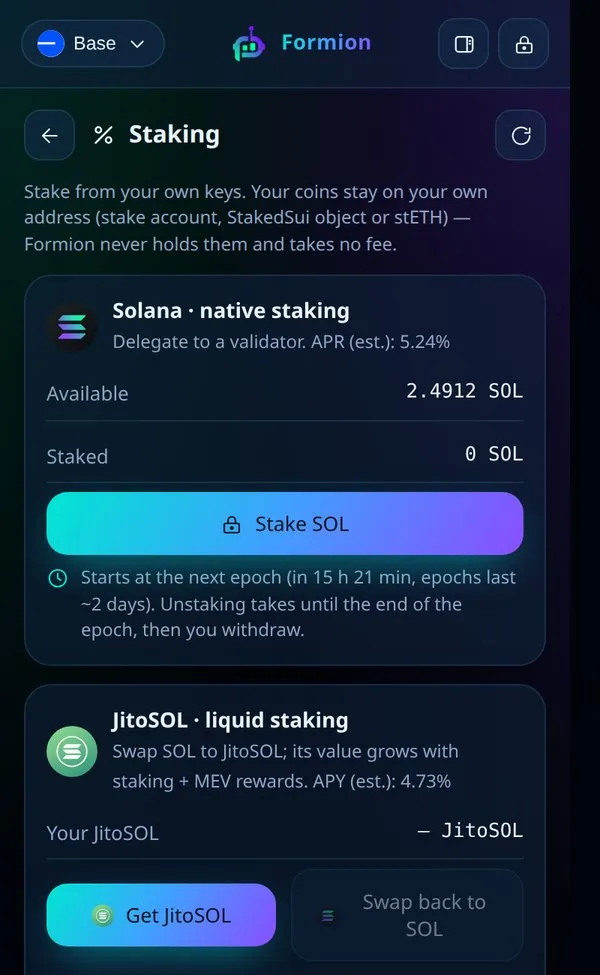
Staking: you sign every step; APR is an estimate and changes every epoch.
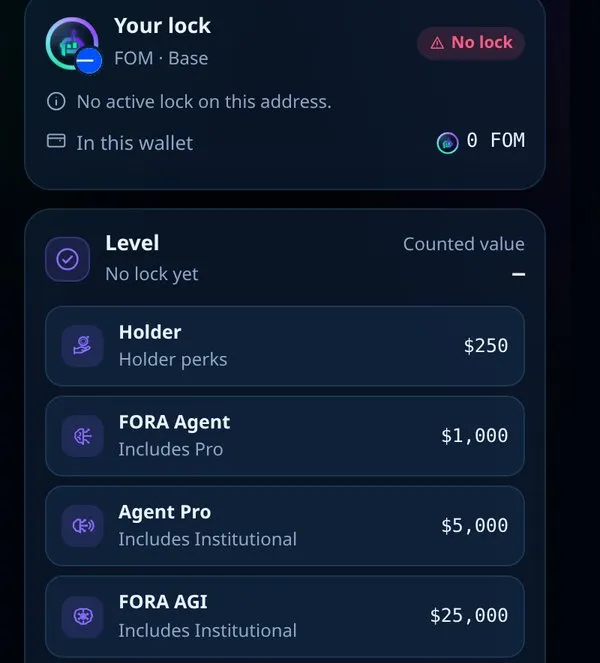
FOM Lock (Beta): your lock and the level it counts toward.
Yields and fees depend on the market and are never guaranteed.
Gas in USDC
Section titled “Gas in USDC”No ETH on Base? Send a token anyway — the network fee is paid in USDC through Circle Paymaster.
- Start a send on Base with no ETH. The wallet offers Pay the network fee in USDC.
- You see the maximum fee before you sign. Circle adds 10% on Base. Unused USDC is refunded in the same transaction.
- The first time, your address gets a one-time smart-account upgrade (EIP-7702). Same address, same recovery phrase. Regular sends with ETH keep working.
Nothing is signed before you click Confirm.
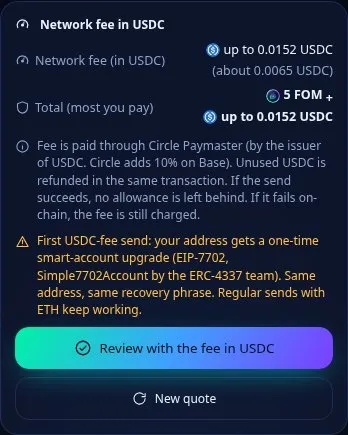
Network fee in USDC: the maximum is shown before you sign.
Orders, history and tools
Section titled “Orders, history and tools”- Orders: DCA, limit and grid orders —
 Jupiter on Solana, CoW Protocol on EVM networks — plus Formion Auto Orders and DCA reminders. See Orders and DCA.
- History with CSV export and a PDF report; review and revoke token approvals.
- Discover, token pages, Radar, FOM Explorer and Risk Scan for any contract.
Connect to a dApp
Section titled “Connect to a dApp”The extension is a standard wallet for websites:
- EVM sites: it appears as Formion Wallet in the site’s wallet list (EIP-6963, EIP-1193).
- Solana sites: it appears in the Solana wallet list (Wallet Standard).
- WalletConnect: paste a
wc:link or scan the QR code in Formion tools → WalletConnect.
- On the site, click Connect wallet and choose Formion Wallet.
- The Formion window shows the site, its security (HTTPS) and what it will be able to do. Click Connect or Reject.
- Every later signature or transaction opens the same window with a preview of what leaves and what arrives. Nothing is approved automatically.
- See and remove connected sites in the Sites tab.
Live recording with a local DEMO test dApp: connect, then sign a message — each step in the Formion window.
Raw eth_sign requests are always refused. Known phishing sites and risky tokens are flagged.
Optional: connect your Formion account
Section titled “Optional: connect your Formion account”The wallet works fully without a Formion account. Linking your free account adds the account features: Insights (P&L per token and reports), alerts (price alerts, incoming payments, reminders and the Whale Tracker as browser notifications), exchange balances in your net worth, .fom name registration, token profiles and promotion for projects. Beta features follow your Formion plan.
- Open Settings → Formion account and click Connect Formion account.
- Click Open page, sign in to formion.ai if asked, type the code shown in the extension and approve. The code is valid for 10 minutes; the extension finishes by itself.
- To unlink, click Disconnect account. The link also expires after 30 days.
The link can never sign or move funds. Your keys stay in this browser; Formion only learns that this extension belongs to your account.
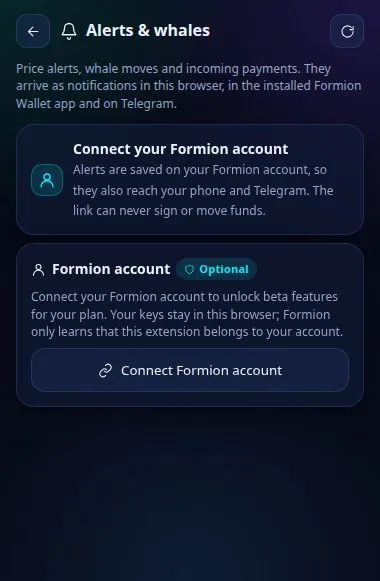
Account features show a "Connect your Formion account" card until you link it.
Security
Section titled “Security”| Protection | What it does |
|---|---|
| Review window | Every connection, message and transaction opens a Formion window first, with a simulation preview of what leaves and what arrives. |
| Send protection | A daily send limit in USD, a password prompt above an amount you choose, or sending only to your address book and own accounts. It applies to every way value can leave the wallet. |
| Passkey unlock | Optional fingerprint, face or device PIN instead of typing the password. It works only on this device for this extension; your password stays as the backup. |
| Blind signing blocked | Raw eth_sign is always refused; phishing sites and risky tokens are flagged. |
| Auto-lock | The wallet locks itself after a period of inactivity, and you can lock it at any time with the lock button. |
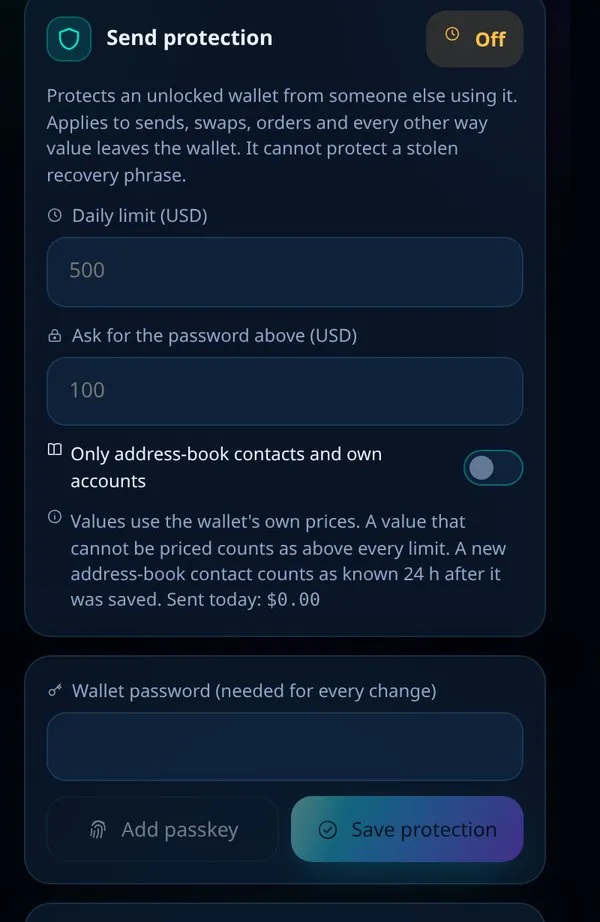
Send protection: limits apply to sends, swaps, orders and every other way value leaves the wallet.
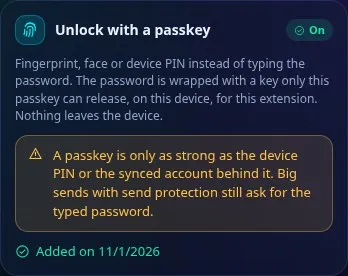
Passkey unlock: big sends with send protection still ask for the typed password.
Languages and theme
Section titled “Languages and theme”The extension speaks 11 languages: English, Español, Français, Português, Русский, Deutsch, Türkçe, Italiano, Polski, Srpski and Hrvatski. It follows your browser language, and you can change it in Settings, together with the dark, light or Formion theme. Recovery phrases always use the official English BIP39 words.
Privacy and support
Section titled “Privacy and support”- Privacy policy: formion.ai/extension/privacy — exactly what the extension stores and sends.
- Help: formion.ai/support or [email protected].
- Web wallet: wallet.formion.ai — the same wallet in any browser and on your phone.